THEME SETTINGS
Overview
Use Theme settings to customize the store's typography, colors, cart, social media, and more.
The Theme settings menu provides controls for adjusting the Milano theme's settings. For example, you can use the color schemes to adjust the color groups used in the theme.
Adjust a theme setting
To adjust a theme setting, follow the following steps.
-
On the store’s admin page, select Online store from the side menu.
-
In the Current theme area, select Customize.
-
From the customize theme menu, select Theme settings. Depending on the size of your device’s screen, the menu is on the left or right side.
-
From the Theme settings menu, select a menu section.
-
In the expanded menu section, select a setting to adjust.
-
Adjust the settings.
When you’re finished adjusting the theme, to avoid losing unsaved changes, select Save at the top of the Theme settings menu.
Theme Milano's settings
Select a setting described in the following table
| Setting name | Description |
|---|---|
| Logo and favicon | Adjust the theme's favicon. |
| Typography | Adjust the theme typography system (heading, paragraph): font family, font size, font weight, line height, letter spacing, scale, case. |
| Layout | Adjust the page layout: width, Spacing between sections, Container gap, Grid gap. |
| Animation | Adjust the show-up animation of elements when scrolling after the page loads: Desktop smooth scroll, Animate duration, Animate effect, Animate strength. |
| Corner radius | Adjust the corner radius of elements: None, Small, Medium, Large. |
| Buttons | Adjust the buttons: Button presets, Variant, Button loader, Font, Text weight, Text case, Corner radius. |
| Input fields | Adjust the inputs in forms: Input presets, Corner radius, Border. |
| Badges | Adjust the sale badge in product cards and product detail: Preset, Content type. |
| Products cards | Adjust the style of product cards: Product media hover effect, Maximum swatches to show, Variant images, Quick view aspect ratio media. |
| Cart | Adjust the mini cart: Cart type, Drawer position, Show note, Show discount, Show free shipping, Show product suggestion. |
| Modal | Adjust the modal popup: Color scheme, Padding, Margin, Animation, Backdrop. |
| Drawer | Adjust the drawer: Color scheme, Padding, Margin, Border. |
| Swatches | Adjust the product variant swatches: Swatches name, Variant images, Width, Height, Corner radius |
| Variant pickers | Adjust the variant pickers: Variant width, Corner radius. |
| Image lazyload | Adjust the image lazyload: Enable lazyload, Type of loading. |
| Currency format | Adjust the currency: Show currency codes. |
| Dark mode | Adjust the dark mode color scheme: Dark mode mapping. |
| Social media | Adjust the social media links: Social links. |
| Custom CSS | Adds custom styles to your entire online store: Custom CSS. |
1. Logo & Favicon
Use the Theme settings > Favicon menu options to customize your store’s logo & favicon.
Use the image picker to select an image from your store’s image library to use as a favicon. The maximum image size for a favicon is 32pxx32px. Uploaded favicon images that exceed these dimensions will be scaled down to 32pxx32px.
2. Colors
Use this settings to set how colors are used throughout your store.
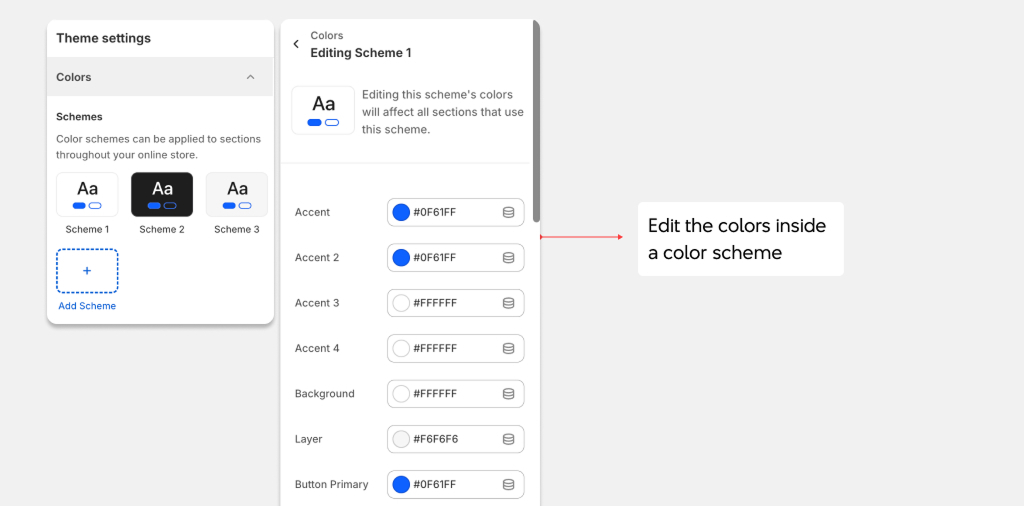
You can use the available color schemes, or edit them or create new schemes. Color schemes can be applied to sections throughout the online store.
3. Search
Use the search behavior to control how the search results are displayed. When the product suggestions are enabled, the search view can show the products beside other search results of collections or blog posts.
4. Typography
Use this setting to set how text is displayed throughout your store. You can select the font families for subheadings, headings body texts, and anywhere else with typeface.
Keep in mind that using the System fonts is preferable since they load faster than other font.
5. Layout
Use this settings to change the theme page's layout - from the width to space between sections, and grid.
6. Animation
Use this settings to change the duration of the animation and the effect.
7. Corner radius
Use this settings to change the radius of the corner on overall theme, with Pill being the highest.
8. Buttons
Use this settings to change the style of the button.
9, Input fields
Use this settings to change the style of the input.
10. Products cards
Use this settings to change the look of the product cards for products.
11. Cart
Use the Theme settings > Cart menu options to set how customers purchase products on your store’s cart page.
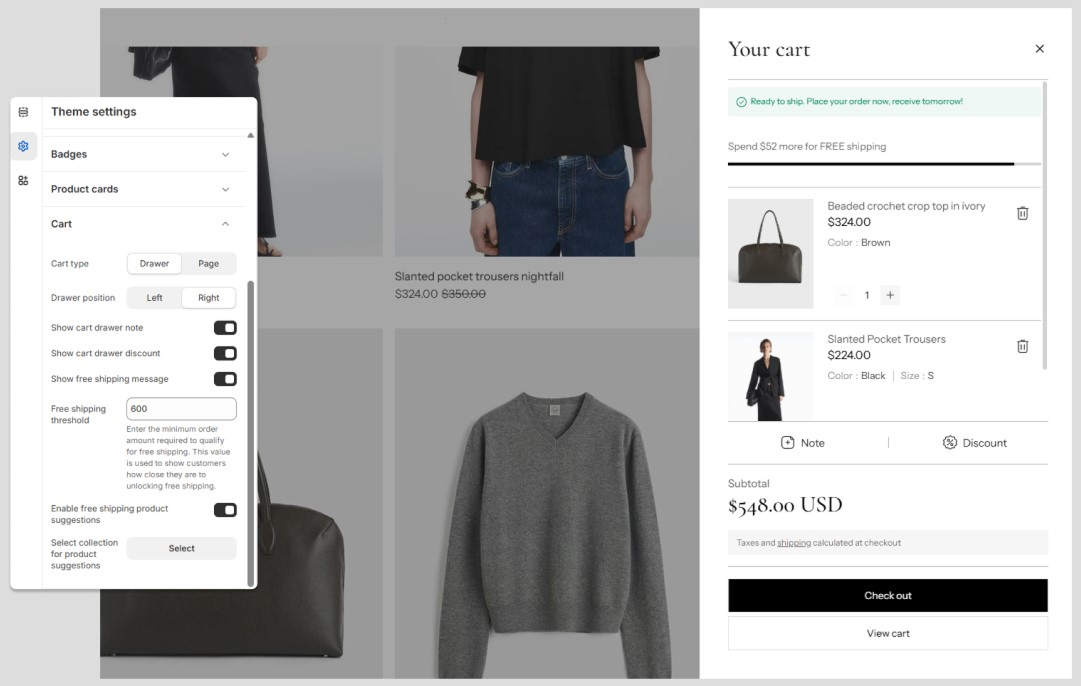
- Cart type. Use the Cart type dropdown to set your cart to display as a Drawer or Page, when the Add to cart button is selected. With this option set to Drawer, the cart displays on the current page within a side element called a drawer. To turn off this functionality, and redirect visitors to the cart page, set the dropdown to Page.
- Cart drawer placement: Choose to show the cart on the left or right of the screen
- Show cart free shipping: Show the free shipping bar and set the rule for the amount of order that the customer can receive free shipping.
12. Modal
Use this settings to change the look of the modal with border, shadow and the animation.
For example, change how the Quick Preview modal looks.
13. Drawer
Use this settings to change the setting of the drawer animation, like cart drawer or menu drawer
14. Swatches
Use this settings to change the setting of the product variant swatches, like the size, or using variant images or not.
15. Variant pickers
Use this settings to change the look of the variant pickers, like their width.
16. Image lazyload
Enable/Disable and chose between 3 type of lazy loadings.
17. Currency format
Enable this settings to show the currency code on the store.
- Show currency code: Enable so cart and checkout prices always show currency codes. Example: $1.00 USD.
18. Social media
This section describes the Theme settings > Social Media menu options to integrate social media into your store.
- Social media accounts: Add the link to your store's social media. Enter links for Instagram, Facebook, Twitter, Pinterest, Snapchat, TikTok, Tumblr, Youtube, and Vimeo.
When you enable social media links, the theme displays corresponding social media links as text/ icons throughout your store.
19. Custom CSS
Use this to add custom CSS to the theme.