Runway Theme Documentation

Welcome to the Runway theme user documentation. If you have any questions about theme features, configuration or bug fixes, then you should find it here. If you can’t find the answer you need, contact us through our email hello@brainecom.com
How to install Runway theme
Directly from the website
When you install Runway theme from our website, follow these steps:
- Download the zip file from the website
- Install the file inside to your website
- Use our app to finish the installation process and manage the updates.
On the Shopify Theme Store
To install Runway, complete the following steps:
-
At the store’s admin, go to Sales channels > Online store > Themes > Theme library.
-
At Theme library, click on Import theme and choose Visit Theme Store.
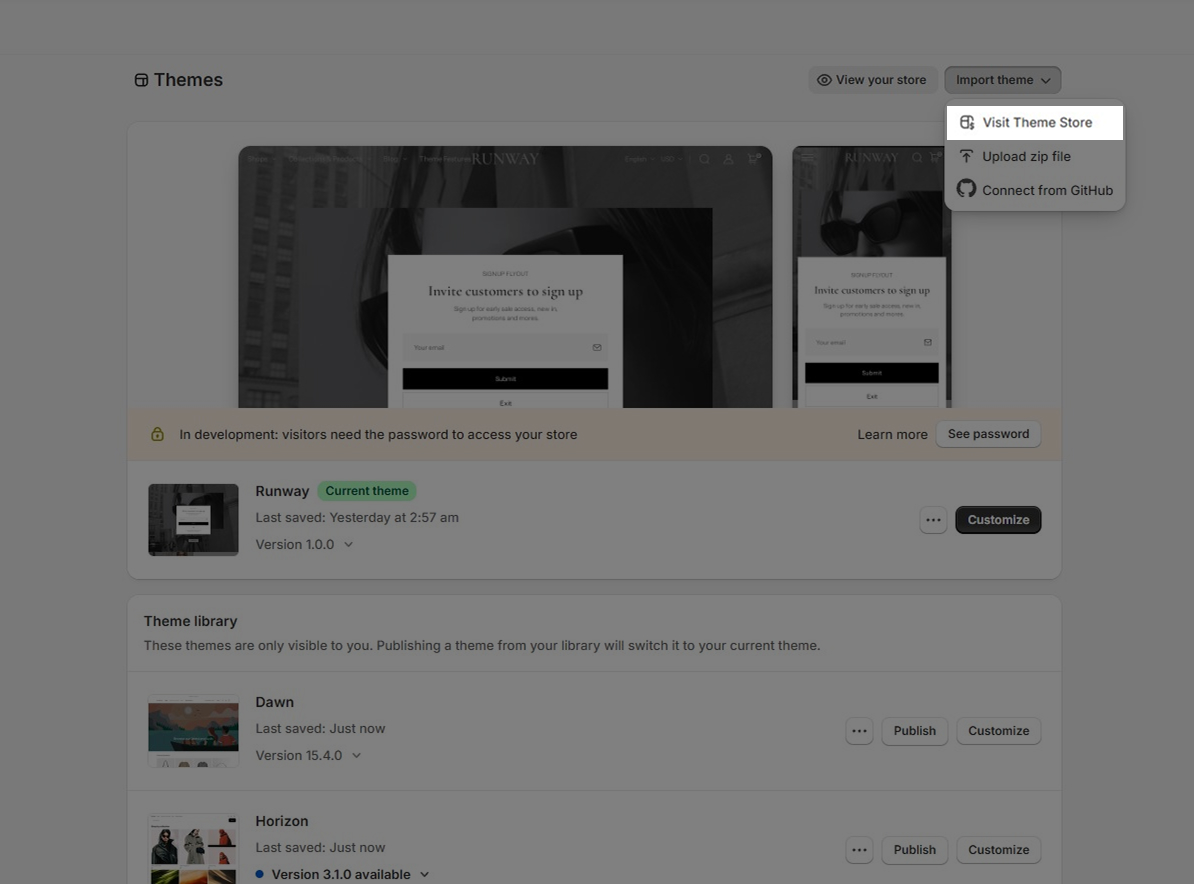
-
Enter Runway as the search term into the Search bar.
-
Select Runway, then click on Try theme.
-
Now, confirm if Runway is listed in your Theme library.
-
You have several actions to take with a theme, including:
- Preview. Apply Runway to your store temporarily, to see its appearance.
- Buy. Purchase Runway.
- Customize: Edit Runway as you want with in-depth settings
- Remove. Delete Runway from your theme library.
- Publish: Apply Runway theme to your store
Nice! Now you've installed Runway theme successfully and can start using for your Shopify store.
Email us at hello@brainecom.com