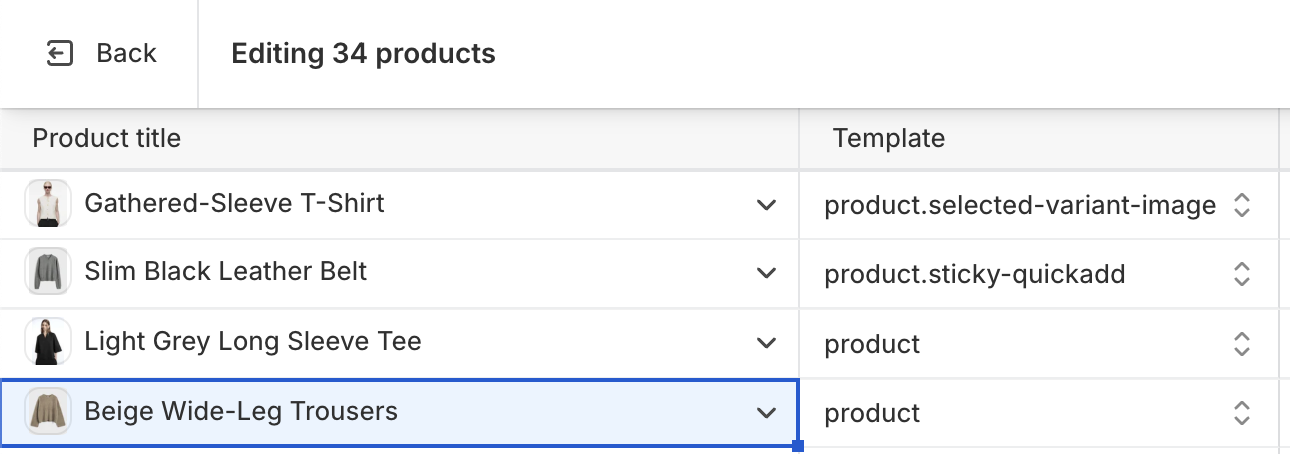
Change other templates preset
This guide describes how to change the other templates preset (collection list, collection, product, etc.).
1. Collection list
- Do the same as with the Homepage
- On your store's Shopify admin page, on the side menu, select Sales channels > Online store > Themes.
- In the Current theme section, select Edit code to open the Code theme editor.
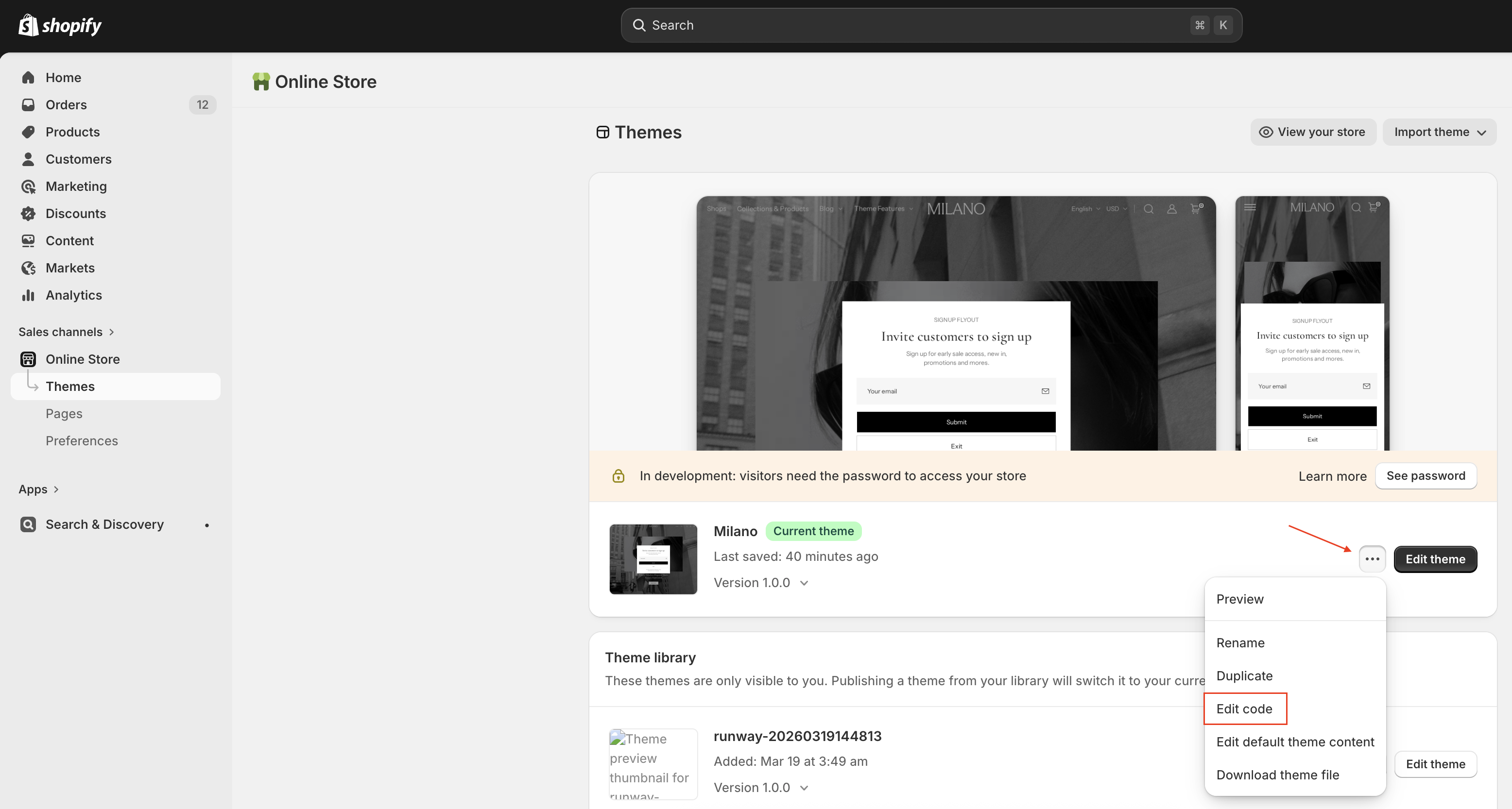
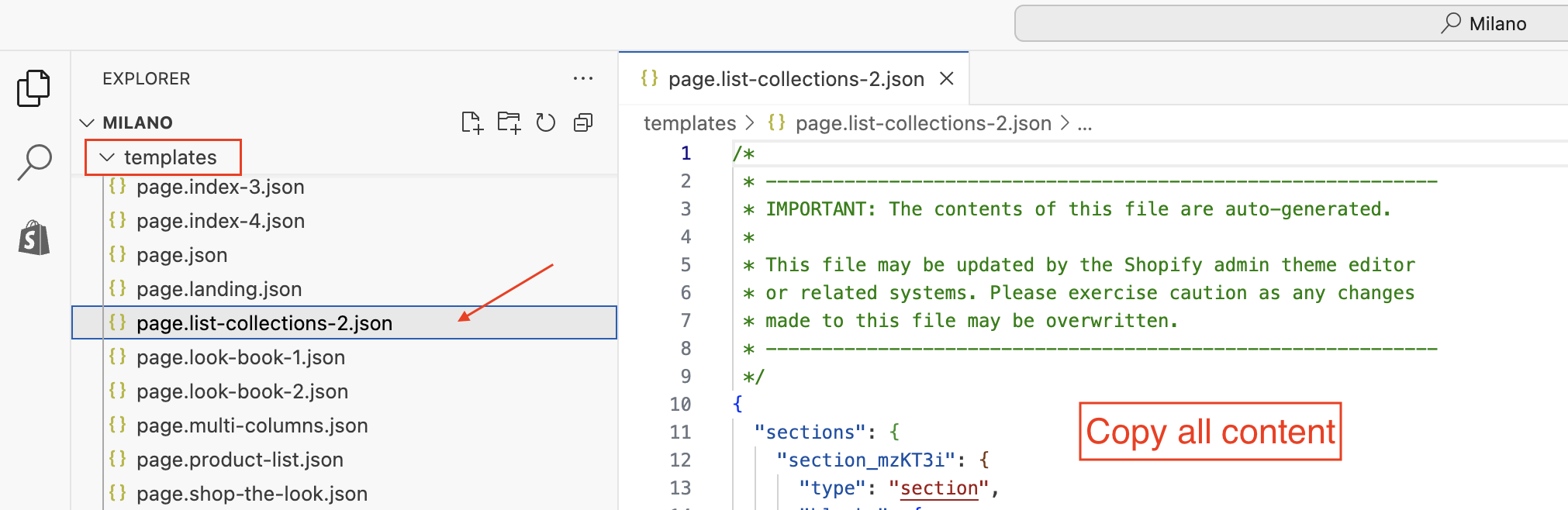
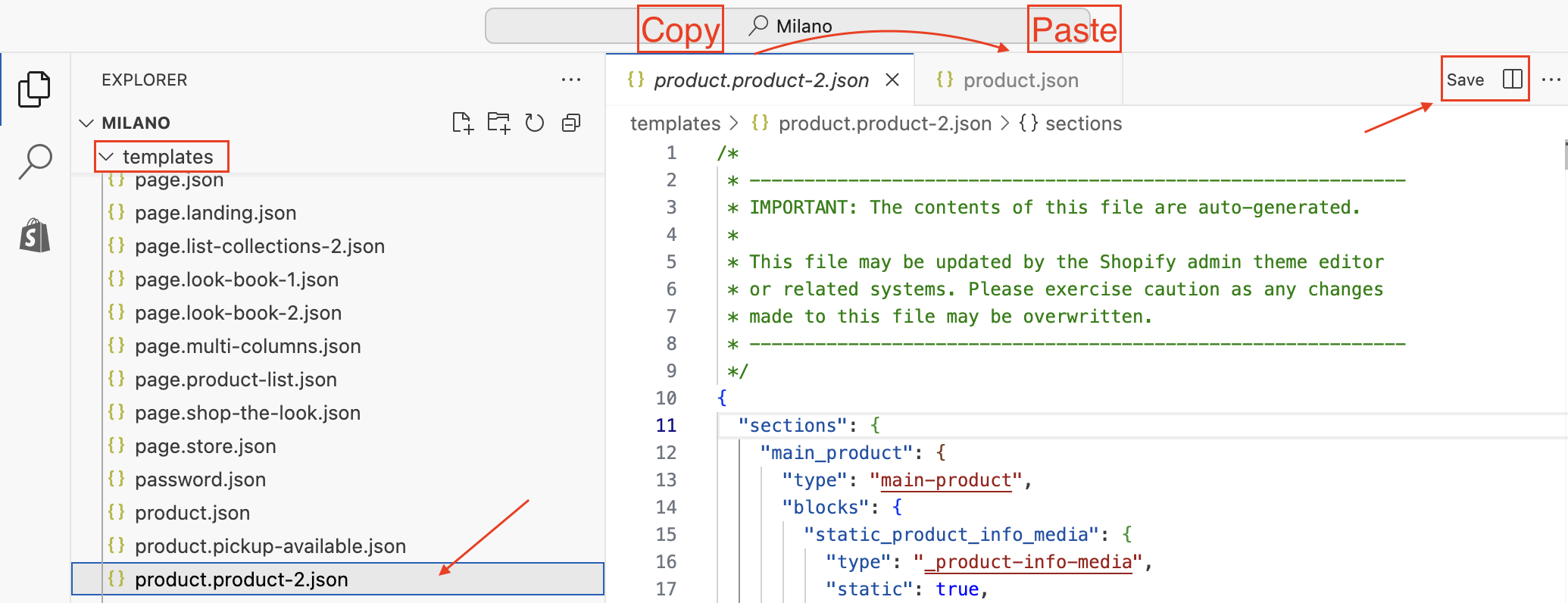
- On the left side of the editor, open the folder templates -> find the JSON file for the preset you want (
page.list-collections-2.json)
tip
You can use the keyboard shortcut Ctrl + P (Windows) or Command + P (Mac) to find files faster.
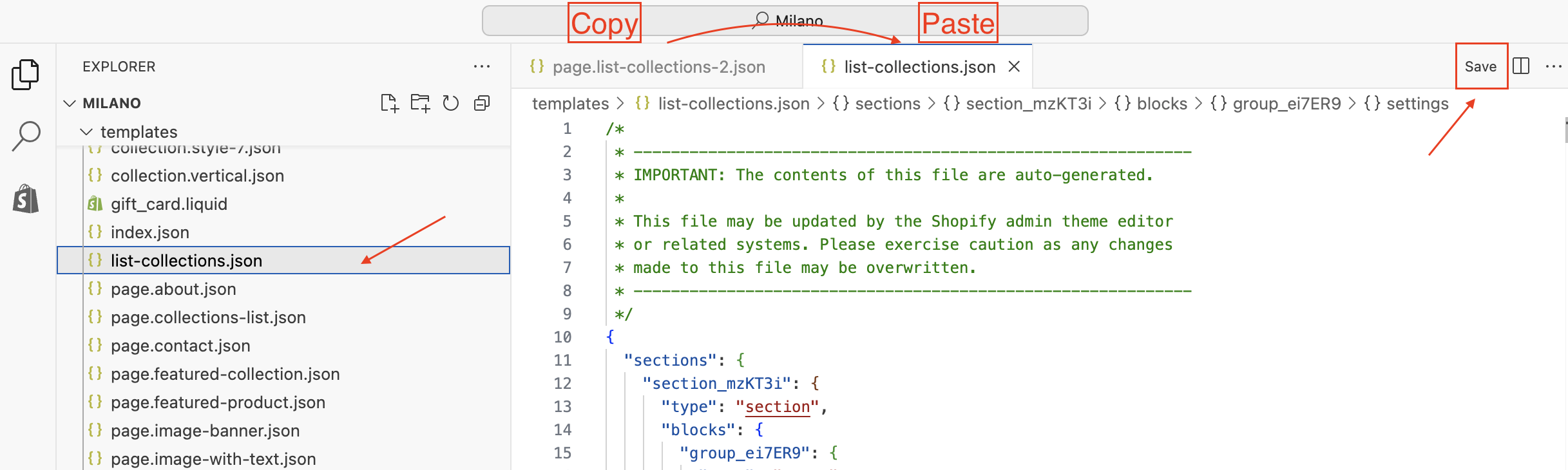
- Copy all the content inside the preset JSON file (
page.list-collections-2.json) -> open the filelist-collections.json(collection list page) -> paste it to replace the entire content inlist-collections.json-> save the file
tip
You can use keyboard shortcuts to perform actions:
- Ctrl + A (Windows) or Command + A (Mac) to select all the content in the file.
- Ctrl + C (Windows) or Command + C (Mac) to copy the content.
- Ctrl + V (Windows) or Command + V (Mac) to paste the content.
- Ctrl + S (Windows) or Command + S (Mac) to save the file.
2. Product, Collection, Blog, Blog post
Please read the note below before deciding to change any templates.
note
- The guide for Product, Collection, Blog, and Blog post is the same.
- When a Product, Collection, Blog, or Blog post is created, it will have its corresponding default template: Default product, Default collection, Default blog, and Default blog post.
- You can change the default templates to other preset styles if desired, or you can also assign individual products, collections, blogs, or blog posts to different template styles to increase style diversity for your theme.
Change Default Template
- The default templates include:
product.json,collection.json,blog.json,article.json - Do the same as with the Homepage or Collection list.
Assign product(collection, blog, blog post) to a template
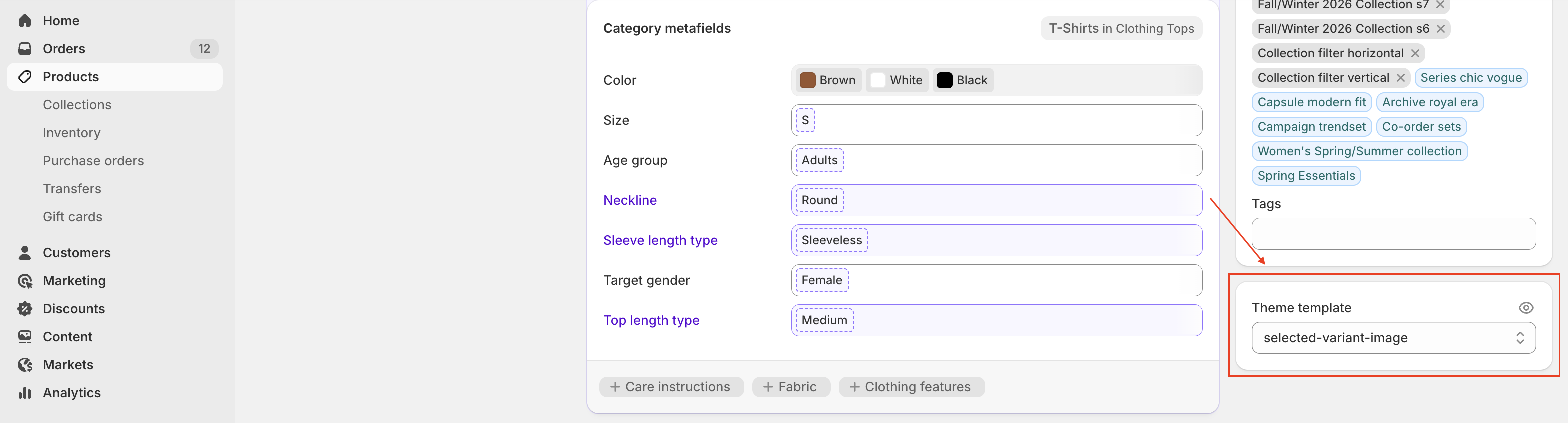
- You can select a template for each individual product (collection, blog, blog post).
tip
Use bulk edit to assign templates more quickly.