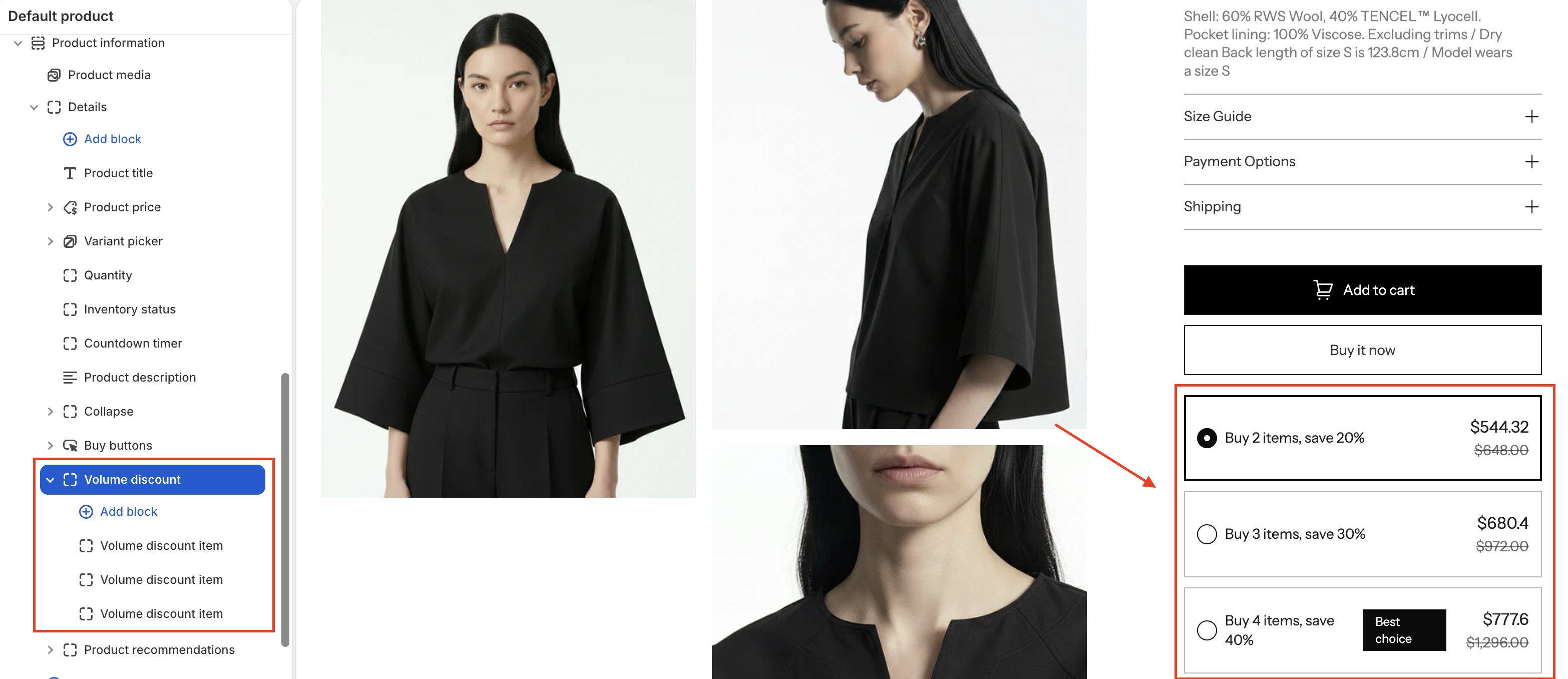
Volume discount
This guide describes how to create a volume discount for products.
This feature follows the discount setup in the admin. For each different product quantity, a different discount level will be applied.
The Main product section is for visual display only and does not calculate or apply discounts.
Setup discount
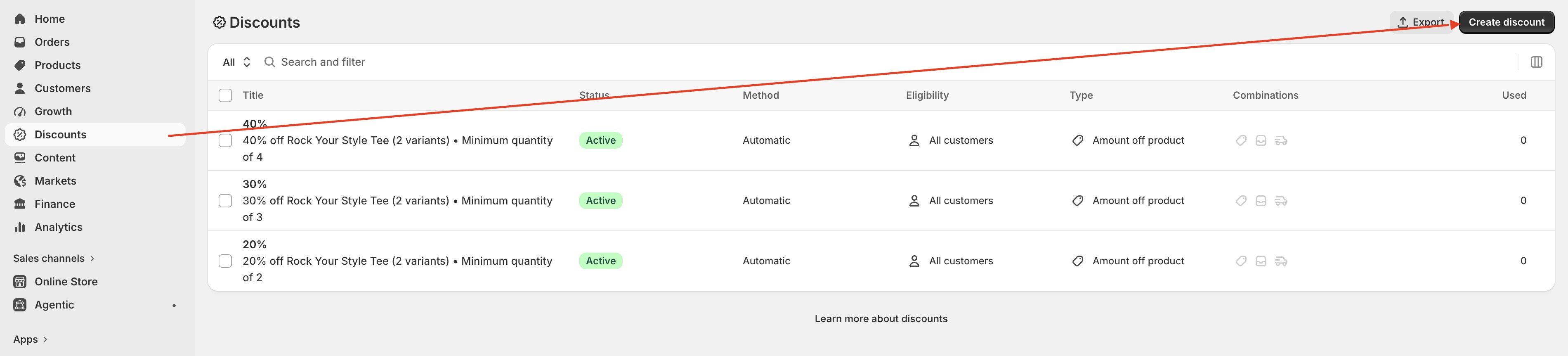
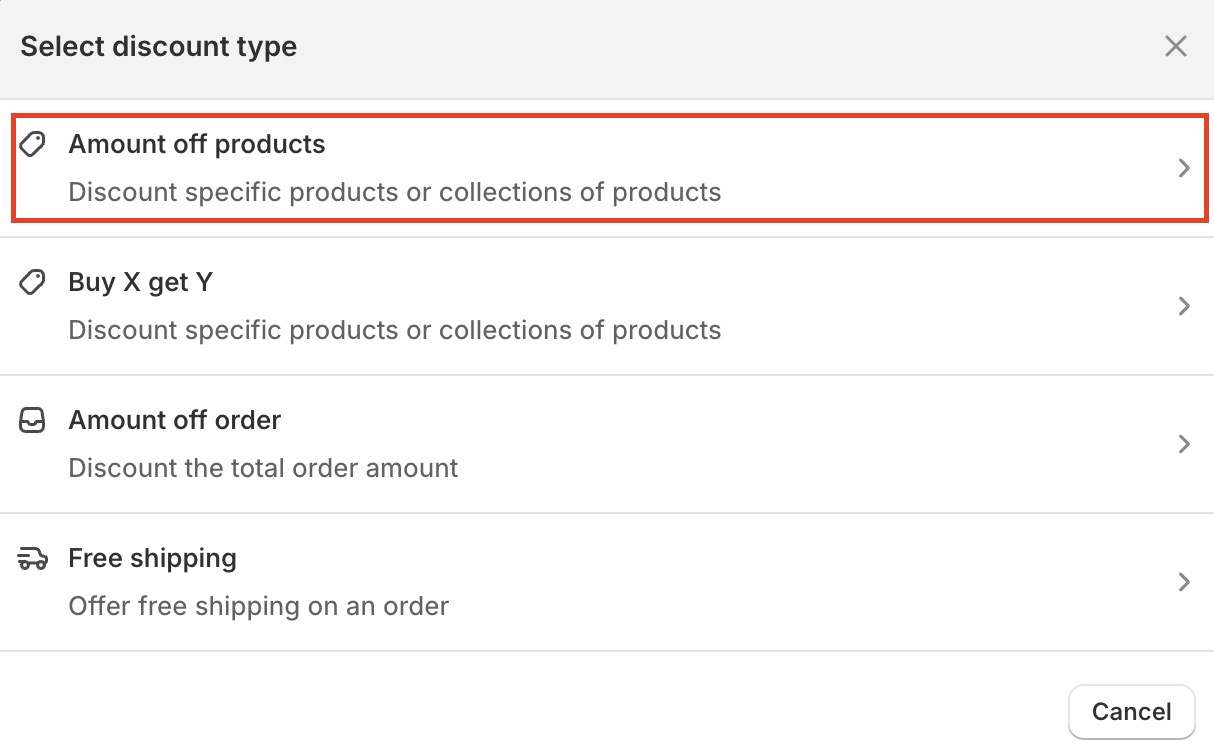
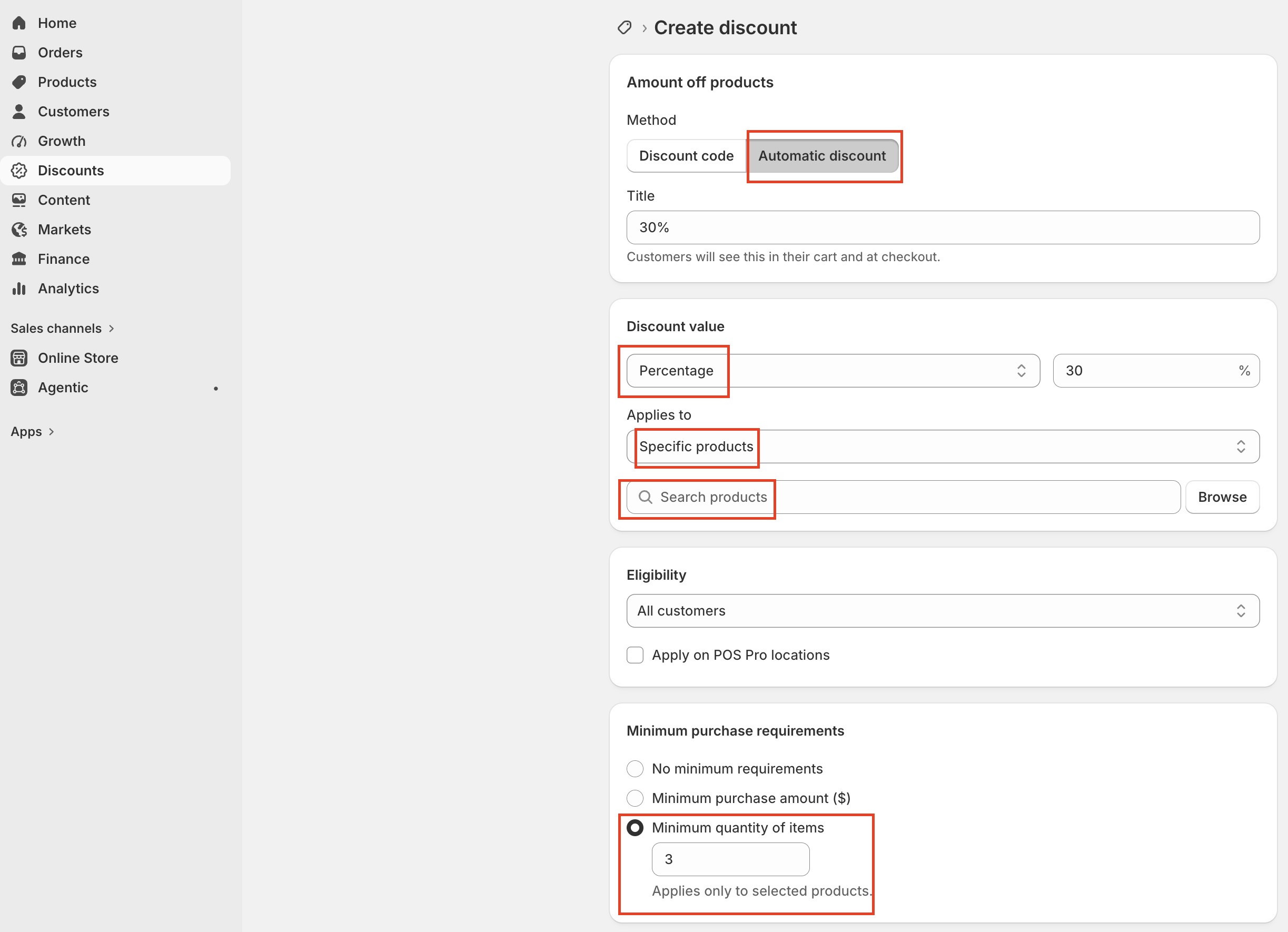
- On your store's Shopify admin page, from the left-side menu, select Discounts > Create discount > select Amount off products in box discount type
- Inside Discounts, pay attention to the following values:
- Method: select Automatic discount
- Discount value: select Percentage or Fixed amount
- Applies to: select Specific products > select the products you want to apply this discount to
- Minimum purchase requirements: enter the minimum product quantity required to apply the discount
Setup section Main product
-
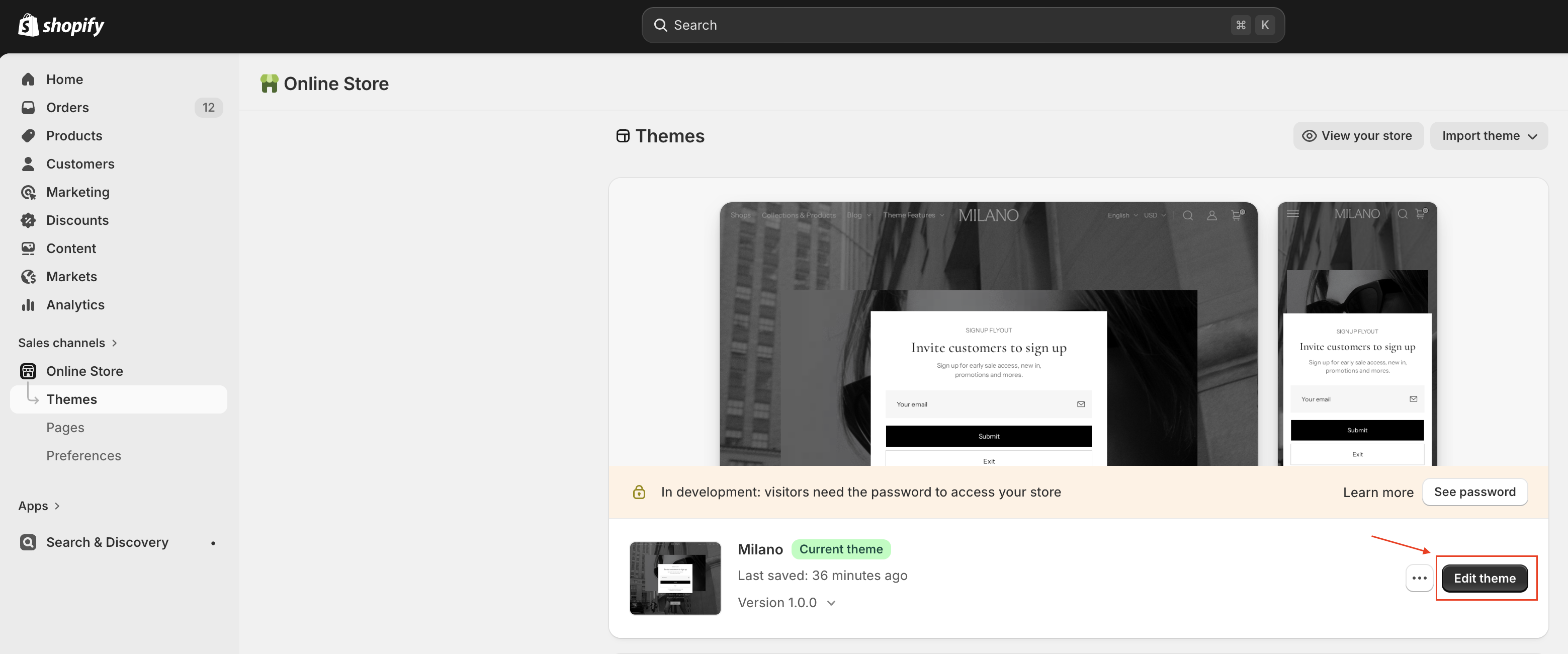
On your store's Shopify admin page, from the left-side menu, select Sales channels > Online store > Themes.
-
In the Current theme section, select Edit theme (or Customize) to open the Theme editor.
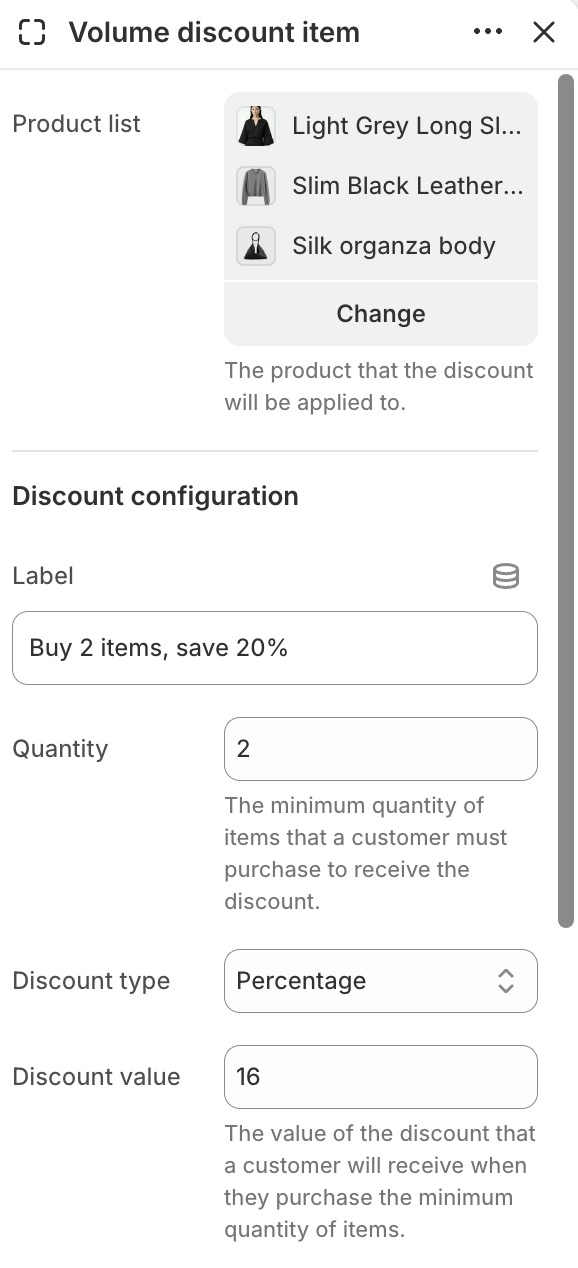
- Go to the product page > Main product > Product content block > add block Volume discount > add block Volume discount item
- Configure block Volume discount item
- Product list: select the products you selected in the admin discount
- Quantity: enter the exact minimum purchase requirements quantity you entered when creating the discount
- Discount type and Discount value: select according to what you chose when creating the discount